运动控制开发指南
本文档介绍 精灵3 机器人运动控制的开发说明。
项目仓库地址(请仔细阅读 README):bxi_rl_controller_ros2_example
机器人主控根目录下的 bxi_ws 文件夹包含运动控制程序。
启动机器人程序
自启动逻辑说明
机器人主控上电后,默认由 systemd 自启动服务 ros_elf_launch.service 拉起机器人程序。启动链路分为以下两个环节:
- 自启动服务:
ros_elf_launch.service是开机入口,负责在后台启动遥控器程序remote_controller/remote_conroller_launch.py。 - 真机程序:遥控器程序
remote_conroller_launch.py里面有启动真机程序的部分(即按下遥控器右遥杆启动),自启动的真机程序默认都在~/bxi_ws/bxi_rl_controller_ros2_example中
提示:调试单个 launch 或自定义节点前,建议先停止
ros_elf_launch.service,避免后台默认节点和手动节点同时运行产生冲突。
自启动服务管理
若当前不是 root 用户,请在
systemctl前加sudo。
# 查看服务状态
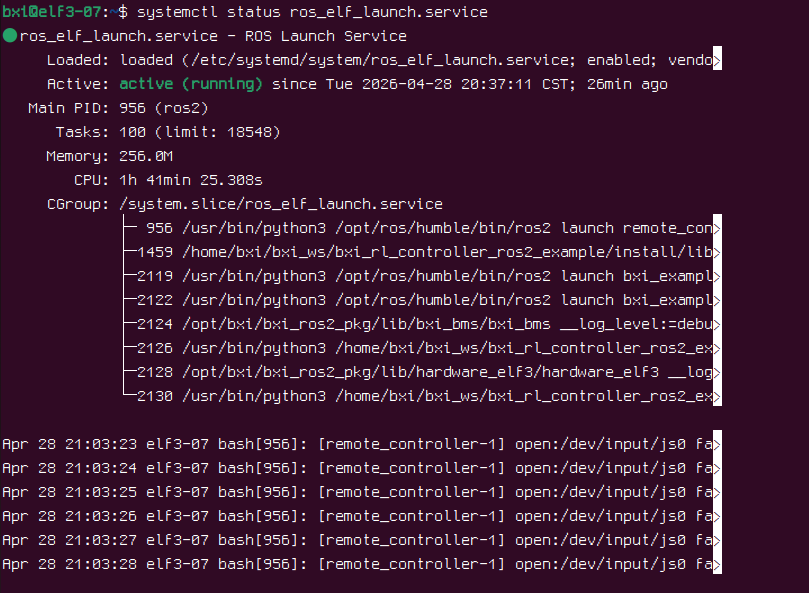
systemctl status ros_elf_launch.service

# 启动服务
systemctl start ros_elf_launch.service

# 重启服务
systemctl restart ros_elf_launch.service

# 停止服务
systemctl stop ros_elf_launch.service

# 设置开机自动启动
systemctl enable ros_elf_launch.service

# 取消开机自动启动
systemctl disable ros_elf_launch.service
手动启动 launch 或节点
绕过自启动服务手动调试前,建议先停止默认服务:
systemctl stop ros_elf_launch.service
启动仿真程序
source /opt/bxi/bxi_ros2_pkg/setup.bash
cd bxi_ws/bxi_rl_controller_ros2_example
source install/setup.bash
ros2 launch bxi_example_py_elf3 example_demo.launch.py
启动真机程序(注意安全)
与电机交互的程序需要 root 权限:
sudo su
source /opt/bxi/bxi_ros2_pkg/setup.bash
cd /home/bxi/bxi_ws/bxi_rl_controller_ros2_example
source install/setup.bash
ros2 launch bxi_example_py_elf3 example_demo_hw.launch.py
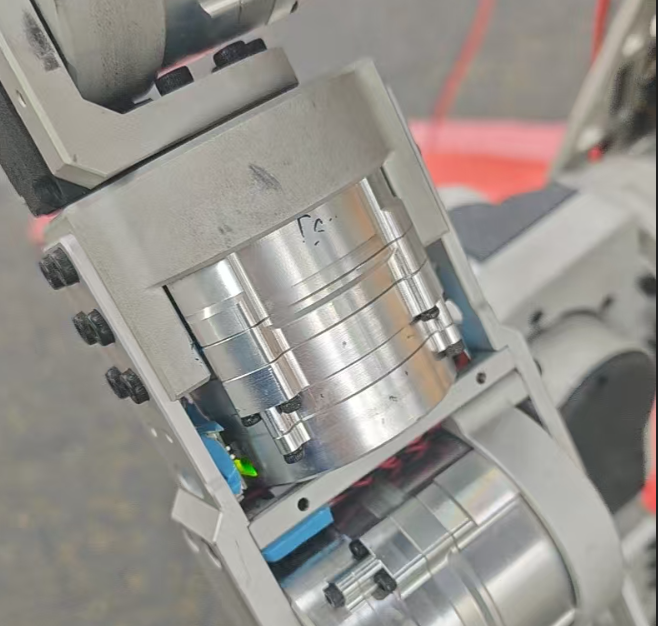
启动后电机会上电,全身电机指示灯变绿。机器人进入自检,若约 6 秒后绿灯未熄灭,说明自检通过。
启动遥控器程序
# 真机
sudo su
source /opt/bxi/bxi_ros2_pkg/setup.bash
cd /home/bxi/bxi_ws/bxi_rl_controller_ros2_example
source install/setup.bash
ros2 launch remote_controller remote_controller_launch.py

# 仿真
source /opt/bxi/bxi_ros2_pkg/setup.bash
cd ~/bxi_ws/bxi_rl_controller_ros2_example
source install/setup.bash
ros2 launch remote_controller remote_controller_launch.py
如果只需要启动单个节点,完成环境加载后使用:
ros2 run <package_name> <executable_name>
二次开发指南
选择合适的修改层级
| 需求 | 建议修改层级 |
|---|---|
| 需要自己控制机器人移动 | 新增自定义控制节点,向 /motion_commands 发布命令 |
| 需要修改机器人运动控制的模型 | 修改bxi_example_demo.py和程序example_demo_hw.launch.py |
推荐从第 1 层级开始:保留官方运动控制程序,只替换发布 /motion_commands 的控制节点。仅在需要改变开机默认行为时,才修改自启动服务或其启动脚本。
各层级操作说明:
- 自定义控制节点:调试时先停止
ros_elf_launch.service或默认遥控器节点,避免多个节点同时发布控制命令。 - 修改 launch文件和主程序:机器人启动的默认程序都在
~/bxi_ws//bxi_rl_controller_ros2_example/src/bxi_example_py_elf3里面
修改后重新编译、source 工作空间,再用ros2 launch或重启服务验证。
快速新增自定义控制器节点
第一步:停止自启动服务
systemctl stop ros_elf_launch.service
# 或者
killall remote_controller
消息类型说明
机器人启动后会订阅 /motion_commands 话题,消息类型为 communication/msg/MotionCommands(定义在 bxi_ros2_pkg 中):
std_msgs/Header header
    builtin_interfaces/Time stamp
        int32 sec
        uint32 nanosec
    string frame_id
geometry_msgs/Vector3 vel_des
    float64 x
    float64 y
    float64 z
float32 height_des
float32 yawdot_des
int32 mode
int32 btn_1  ... int32 btn_10
int32 axis_1 ... int32 axis_10
第二步:创建一个发布者
C++ 示例
1. 创建功能包
# 将 my_cpp_pkg 替换为你的包名
ros2 pkg create my_cpp_pkg --build-type ament_cmake --dependencies rclcpp std_msgs
2. 编写节点代码
在 src/ 目录下创建 main.cpp:
#include "rclcpp/rclcpp.hpp"
#include "std_msgs/msg/string.hpp"
#include <communication/msg/motion_commands.hpp>

using namespace std::chrono_literals;

class MotionCtrl : public rclcpp::Node
{
public:
    MotionCtrl() : Node("motion_ctrl")
    {
        publisher_ = this->create_publisher<communication::msg::MotionCommands>("/motion_commands", 20);
        timer_ = this->create_wall_timer(500ms, std::bind(&MotionCtrl::timer_callback, this));
    }

private:
    void timer_callback()
    {
        auto message = communication::msg::MotionCommands();
        message.header.stamp = this->get_clock()->now();
        message.header.frame_id = "";
        message.vel_des.x = 0.5;  // 前后速度
        message.yawdot_des = 0.5; // 旋转速度
        publisher_->publish(message);
    }

    rclcpp::Publisher<communication::msg::MotionCommands>::SharedPtr publisher_;
    rclcpp::TimerBase::SharedPtr timer_;
};

int main(int argc, char **argv)
{
    rclcpp::init(argc, argv);
    rclcpp::spin(std::make_shared<MotionCtrl>());
    rclcpp::shutdown();
    return 0;
}
修改 CMakeLists.txt,添加以下内容:
find_package(communication REQUIRED)
add_executable(cpp_node src/main.cpp)
ament_target_dependencies(cpp_node rclcpp std_msgs communication)

install(TARGETS
  cpp_node
  DESTINATION lib/${PROJECT_NAME}
)
3. 编译并运行
colcon build
source install/setup.bash
ros2 run my_cpp_pkg cpp_node
Python 示例
1. 创建功能包
# 将 my_py_pkg 替换为你的包名
ros2 pkg create my_py_pkg --build-type ament_python --dependencies rclpy std_msgs
2. 编写节点代码
创建 my_py_pkg/motion_ctrl.py(即 main.py):
import rclpy
from rclpy.node import Node
from communication.msg import MotionCommands


class MotionCtrl(Node):
    def __init__(self):
        super().__init__('motion_ctrl')
        self.publisher_ = self.create_publisher(MotionCommands, '/motion_commands', 20)
        self.timer = self.create_timer(0.5, self.timer_callback)

    def timer_callback(self):
        message = MotionCommands()
        message.header.stamp = self.get_clock().now().to_msg()
        message.header.frame_id = ''
        message.vel_des.x = 0.5   # 前后速度
        message.yawdot_des = 0.5  # 旋转速度
        self.publisher_.publish(message)


def main(args=None):
    rclpy.init(args=args)
    node = MotionCtrl()
    try:
        rclpy.spin(node)
    finally:
        node.destroy_node()
        rclpy.shutdown()


if __name__ == '__main__':
    main()
在 package.xml 中添加依赖:
<depend>communication</depend>
在 setup.py 中注册入口:
entry_points={
    'console_scripts': [
        'motion_ctrl = my_py_pkg.motion_ctrl:main',
    ],
},
3. 编译并运行
colcon build
source install/setup.bash
ros2 run my_py_pkg motion_ctrl
常见问题
1. 真机程序启动失败后如何查看日志
官方程序日志存放在 /var/log/bxi_log/,按时间排序,直接查找最新日志文件即可。
2. 自启动服务状态确认
systemctl status ros_elf_launch.service